Gimkit Host: How to Host a Game Step by Step (2026)

Rajat Chauhan
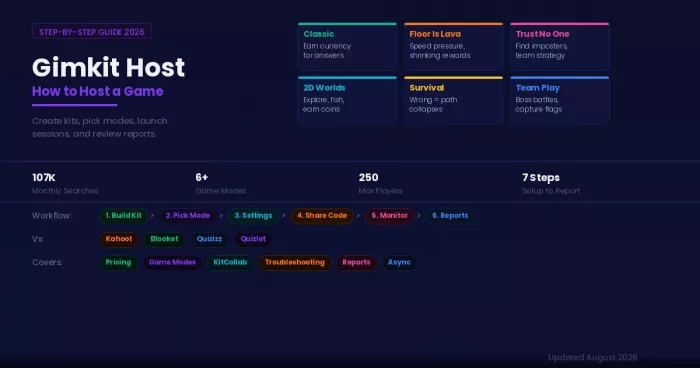
Table of Contents
- What Is a Gimkit Host?
- Gimkit Pricing: Free vs Pro vs School
- How to Host a Gimkit Game: Step by Step
- Hosting Gimkit Assignments (Async)
- Gimkit Creative: Custom 2D Worlds
- How Students Join a Gimkit Game
- Gimkit vs Kahoot vs Blooket: Quick Comparison
- Troubleshooting Common Gimkit Host Issues
- Tips for Better Gimkit Hosting
- Verdict
- FAQ
Gimkit turns classroom review sessions into live, competitive quiz games where students earn virtual currency for correct answers and spend it on power-ups and upgrades. The teacher acts as the host, controlling everything from question content to game mode to pacing. Over 10 million students and teachers have used the platform, and "gimkit host" is one of the most searched education terms online. This guide walks through the complete hosting process from account setup to post-game analytics, covering game modes, settings, pricing, troubleshooting, and practical tips for running sessions that actually keep students engaged.
What Is a Gimkit Host?
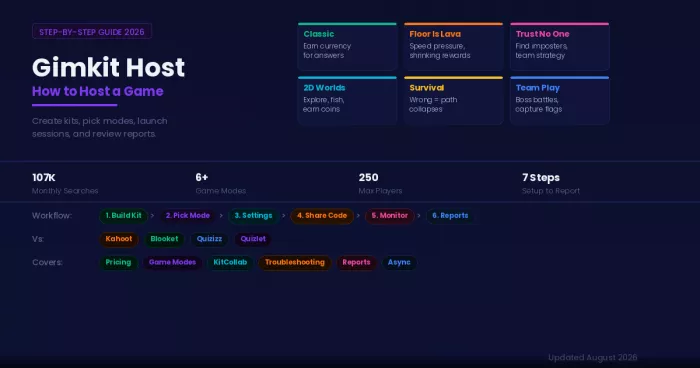
A Gimkit host is the person who creates the game, selects the questions, chooses the game mode, launches the session, and reviews the results afterward. In most cases, this is a teacher or instructor, but students can also host games for peer-led review.
The host controls five layers of the experience. The kit (the set of questions and answers), the game mode (how students interact with the content), the settings (game length, economy, power-ups, late joins), the launch (sharing the join code and starting the session), and the debrief (reviewing post-game reports for individual and class-wide performance).
Students do not need accounts to join. They visit gimkit.com/join, enter the code the host shares, and start playing immediately.
Gimkit Pricing: Free vs Pro vs School
Before hosting, it helps to know what each plan includes.
| Feature | Free | Gimkit Pro | Gimkit for Schools |
|---|---|---|---|
| Create and host live games | Yes (limited) | Yes | Yes |
| Question bank access | Limited | Full | Full |
| Game modes available | Basic (Classic, a few others) | All modes | All modes |
| KitCollab (student-contributed questions) | No | Yes | Yes |
| Assignments (async homework) | Limited | Yes | Yes |
| Post-game reports | Basic | Detailed | Detailed |
| Student accounts and XP tracking | Optional | Full | Full |
| Gimkit Creative (custom 2D worlds) | No | Yes | Yes |
| Max players per session | Lower cap | Up to 250 | Up to 250 |
| Price | Free | ~$9.99/month (individual) | Custom (school/district) |
Free accounts are sufficient for occasional use with small groups. Pro unlocks the full game mode library, larger sessions, detailed analytics, and Creative mode. School plans add admin controls and district-level management.
How to Host a Gimkit Game: Step by Step
Step 1: Create an Account and Open the Dashboard
Go to gimkit.com and sign up with Google or email. The dashboard shows three sections: My Kits (question sets), Assignments (async games), and Classes (student rosters). Everything starts from here.
Step 2: Build or Import a Kit
A kit is the set of questions that powers the game. Four options exist for creating one.
Build from scratch. Click "New Kit," add a title, subject, and language, then type questions and answers directly. Each question needs at least one correct answer and one or more wrong options. Adding images to questions improves engagement.
Import from Quizlet. If a Quizlet set already exists for the topic, Gimkit can import it directly, saving significant setup time.
Use the question bank. Gimkit's built-in library contains pre-made questions across subjects. Search by topic, select relevant items, and add them to the kit.
Copy from the community. Browse kits created by other teachers. Copy one to your account and modify it to fit your curriculum. This is the fastest path for common topics.
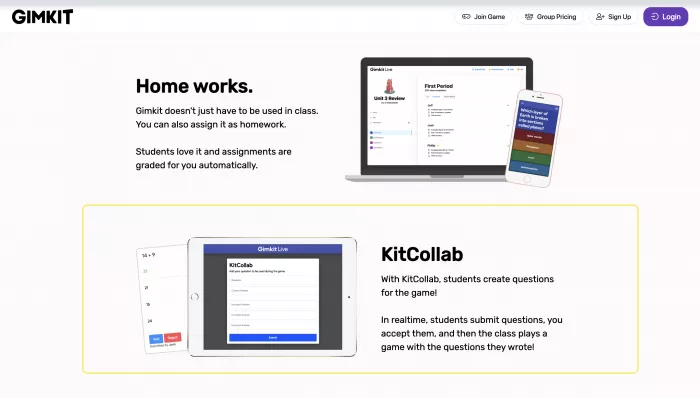
KitCollab (Pro feature). Share a link with students before the game. They submit questions and answers, which the host reviews and approves or rejects before launch. This makes content creation collaborative and gives students ownership of the material.
Step 3: Choose a Game Mode
The game mode determines how students interact with the questions. Each mode changes the pressure, collaboration, and complexity of the session.
| Game Mode | How It Works | Pressure | Collaboration | Best For |
|---|---|---|---|---|
| Classic | Answer questions, earn currency, buy upgrades | Low | None | First-time hosts, quick reviews |
| The Floor Is Lava | Earnings shrink over time, rewarding speed | High | None | Fast-paced review, test prep |
| Trust No One | Identify imposters while answering questions | Medium | High | Critical thinking, team dynamics |
| 2D World Games | Earn coins for correct answers, spend on in-game actions (fishing, snowball fights) | Medium | Varies | Longer sessions, sustained engagement |
| Survival | Wrong answers collapse the path; last one standing wins | High | None | High-stakes review |
| Team Play (Boss Battle, Capture the Flag) | Teams answer together to defeat a boss or capture objectives | Medium | High | Collaboration, group learning |
For first sessions, Classic is the safest starting point. Once students understand the mechanics, modes like Trust No One and Team Play add depth.
Step 4: Configure Game Settings
Settings are where hosting goes from standard to effective. Adjustable options include:
Game objective. Set the win condition: a cash target, a time limit, or completing all questions.
Economy balance. Control starting cash, earnings per correct answer, and power-up costs. If students earn too quickly, power-ups feel meaningless. If earning is too slow, frustration sets in.
Late joins. Enable this to let students who arrive late enter the game without restarting. Essential for live classroom environments.
Question flow. Set time limits per question, randomize question order, and determine how many times each question can repeat.
Nicknames. Allow custom nicknames (adds fun but requires ground rules) or use real names for accountability.
Sound and music. Adjust volume or disable entirely. Headphones are recommended for live sessions to keep classroom noise manageable.
Step 5: Launch the Game and Share the Code
Click "Host" and Gimkit generates a unique join code. Share it on the projector, whiteboard, or chat. Students go to gimkit.com/join and enter the code. No student account is required for basic play.
Wait for the lobby to fill. The host screen shows who has joined. When everyone is in, hit "Start Game."
Step 6: Monitor the Live Session
During the game, the host dashboard shows a real-time leaderboard, per-student accuracy, and answer pace. The host can pause the game to review a tricky question with the class, adjust settings mid-game, or end the session early if time runs out.
What the host sees: lobby list, live leaderboard, controls (pause, end, settings), and a summary screen when the game concludes.
What students see: question screen with answer choices, a real-time cash counter, a power-up shop, their rank on the leaderboard, and (in 2D modes) a navigable game map.
If the leaderboard slows down or answer submissions drop, it usually means the economy settings need adjustment or question difficulty is off. Pausing briefly to recalibrate can revive engagement.
Step 7: Review the Post-Game Report
After the game ends, the host accesses a detailed report containing class overview (winners, overall accuracy, answer pace), individual student performance (correct/incorrect breakdown, weak areas), question analysis (which questions the class struggled with, indicating gaps in understanding or unclear wording), and item/currency usage (which power-ups were popular, which were ignored).
These reports are the most valuable part of hosting. They turn a game into a formative assessment tool, highlighting exactly which concepts need reteaching and which students need additional support.
Hosting Gimkit Assignments (Async)
Not every session needs to be live. Gimkit assignments let the host send a kit as homework with a deadline. Students complete it on their own schedule and results flow back to the host dashboard automatically.
This is especially practical for review before a test, makeup work for absent students, or low-pressure practice without the competitive pressure of a live leaderboard. Async assignments generally work best with Classic or simpler 2D modes.
Gimkit Creative: Custom 2D Worlds
Gimkit Creative (Pro feature) lets hosts and students build custom 2D game worlds. The host creates a map, places question checkpoints, designs obstacles, and can even grant editing permissions to students for collaborative world-building. The finished map can then be used as a live game.
This feature moves Gimkit beyond quizzing into project-based learning, where students create the content and environment rather than just consuming it.
How Students Join a Gimkit Game
The student side is intentionally simple. Go to gimkit.com/join (or gimkit.com/play). Enter the game code shared by the host. Choose a nickname or use a real name (depending on host settings). Start answering questions.
No app download is required. No student account is required for basic play, though accounts unlock XP tracking, cosmetics, and long-term stats. The game runs in any modern browser on laptops, Chromebooks, tablets, and phones.
Gimkit vs Kahoot vs Blooket: Quick Comparison
| Feature | Gimkit | Kahoot | Blooket |
|---|---|---|---|
| In-game economy | Yes (earn and spend currency) | No | Yes (limited) |
| Game mode variety | High (6+ modes, 2D worlds) | Medium (classic quiz, team mode) | High (multiple game modes) |
| Async assignments | Yes | Yes (challenges) | Yes |
| Student accounts required | No (optional) | No (optional) | No (optional) |
| Free plan | Limited | Generous | Generous |
| Custom world building | Yes (Creative mode) | No | No |
| Best for | Sustained engagement, strategy | Quick quizzes, large groups | Casual review, younger students |
Gimkit's strength is depth: the economy system, Creative mode, and detailed reports make it more suitable for extended sessions and formative assessment. Kahoot excels at quick, high-energy quizzes for large groups. Blooket sits between the two, offering game variety with a more casual feel.
Troubleshooting Common Gimkit Host Issues
Students cannot join. Verify the code is correct and has not expired. Ensure students are using gimkit.com/join (not gimkit.com). Check that the school network is not blocking Gimkit. Try a different browser if the page does not load.
Game is lagging. Close unnecessary tabs on both host and student devices. Check Wi-Fi bandwidth. In large sessions (50+ students), network congestion is the most common cause.
2D game modes do not load. These modes require WebGL support in the browser. Chrome handles WebGL reliably. Some school-managed Chromebooks may have WebGL disabled by IT policy.
Questions are not appearing correctly. Open the kit and verify that every question has at least one correct answer and at least one incorrect option. Questions with missing answers will not display properly in-game.
Students keep getting the same questions. This is intentional. Gimkit uses smart repetition, resurfacing questions a student got wrong to reinforce learning. The behavior can be adjusted in game settings.
Tips for Better Gimkit Hosting
Start with Classic, then scale up. Let students learn the basic mechanics before introducing complex modes like Trust No One or Creative.
Use KitCollab before launch. Having students submit questions before the game creates buy-in and reveals what they think is important (or what they misunderstand).
Tune the economy after the first game. Default settings work for a first run. After seeing how students interact, adjust earning rates and power-up costs to keep the challenge balanced.
Set clear nickname rules. Nicknames add fun and reduce anxiety, but establishing ground rules prevents inappropriate entries.
Spend five minutes on the report. The post-game data is where the teaching value lives. Identify the three questions the class struggled with most and address them in the next lesson.
Let students host. Once they know the platform, handing hosting to a student for a peer review session reinforces their understanding and gives the teacher a chance to observe.
Verdict
Gimkit hosting gives teachers more control over game-based learning than most competing platforms. The combination of customizable kits, varied game modes, adjustable economy settings, and detailed post-game analytics turns a simple quiz into a formative assessment tool. The learning curve is gentle (Classic mode with default settings takes five minutes to launch), and the depth is substantial (Creative mode, KitCollab, async assignments). Start simple, use the reports, and adjust settings based on what the data shows. The platform rewards hosts who iterate.
FAQ
How do you host a Gimkit game for free?
Create a free account at gimkit.com, build a kit, select a game mode, and generate a join code. Free accounts support live hosting with a limited question bank and fewer game modes than Gimkit Pro.
Do students need accounts to join Gimkit?
No. Students only need the join code to enter a live session. Accounts are optional but unlock XP tracking, cosmetics, and long-term stats.
How many players can join a Gimkit game?
Gimkit supports up to 250 players in a single live session on Pro and School plans. Free accounts have lower participant caps.
Can I host Gimkit from a phone or tablet?
Yes. The host dashboard runs in any modern browser. A laptop or desktop provides the best monitoring experience, but hosting from a tablet works for smaller sessions.
What is the difference between Classic and The Floor Is Lava?
Classic rewards correct answers with currency at a steady rate. The Floor Is Lava shrinks earnings over time, punishing slower answers and adding urgency.
Can Gimkit connect to Google Classroom?
Yes. Gimkit integrates with Google Classroom for roster syncing and assignment distribution, making class management easier for hosts who already use Google's ecosystem.
How long should a Gimkit game last?
Most live sessions run five to ten minutes. Team battles and strategy modes can extend to 15 to 25 minutes. Set the game length in the host settings before launching.

Comments