Blooket Login 2026: Sign In, Join a Game, and Fix Common Errors

Rajat Chauhan
Table of Contents
- Blooket Login vs Blooket Play: Two Different Portals
- Blooket Login Steps for Students and Teachers
- Blooket Sign Up: Creating a New Account
- Blooket Join: Playing With a Game Code
- Inside the Blooket Dashboard
- Teacher Tools After You Log In
- Homework Mode and Solo Play
- Blooks, Tokens, and the Market
- Blooket Login Not Working: Fixes That Actually Help
- Blooket Blocked on a School Network
- Blooket Hacks: An Honest Warning
- Blooket Account Safety and Student Privacy
- Blooket Pricing: Free vs Plus
- Blooket Login FAQ
Quick answer: To log in, go to id.blooket.com/login (or click Login at the top right of blooket.com) and sign in with Google, an email and password, or Clever if your school uses it. To only join a game, you do not need an account. Go to play.blooket.com, enter the Game ID from your teacher, and pick a nickname.
Most Blooket problems are not really login problems. They are portal problems: students land on the account page when they only need the game page, or teachers try a password on an account they created with Google. Once the two access points are clear, signing in takes about fifteen seconds.
This guide covers every sign-in method, the difference between logging in and joining, what each part of the dashboard does, and how to fix the errors that show up during busy classroom hours. Everything here is checked against Blooket's live pages and status tools rather than copied from other guides.
Blooket Login vs Blooket Play: Two Different Portals
Blooket runs on two access points, and picking the wrong one is the single most common source of confusion.
| Portal | Used for | Account needed? |
|---|---|---|
| blooket.com / id.blooket.com | Signing in, creating question sets, hosting games, assigning homework, viewing student results | Yes |
| play.blooket.com | Joining a live game with a Game ID | No |
Teachers and registered students spend their time on the first portal. A student who only needs to jump into today's game uses the second, types the code, and starts playing. No sign-in screen is involved for guest play, which is why "I can't log in to join the game" usually means a student is on the wrong page.
Blooket Login Steps for Students and Teachers
The Blooket login page lives at id.blooket.com/login. You can also reach it by opening blooket.com and clicking Login in the top-right corner. Blooket offers three sign-in methods, and the right one depends on how the account was first created.
Google sign-in
This is the fastest method and the one most schools use. On the login page, click Continue with Google, then choose the correct Google account. If your school runs Google Workspace, use your school account so your progress stays tied to the right identity. Because the session stays linked to Google, returning logins usually take one click.
Email and password
If you registered with an email address, enter that email and your password, then select Sign In. Forgot the password? Use the Forgot Password link on the login page and Blooket emails a reset link within a few minutes. Check spam if it does not arrive.
Clever and school accounts
Clever is a single sign-on system used across many United States school districts. If your district has enabled Blooket inside Clever, log in to your Clever portal with your school credentials, find the Blooket tile, and click it. Clever signs you in with no separate password, and for teachers the class roster may already be synced.
Note: the Clever button only appears if your district has turned on the integration. If you do not see it on the login page, your school has not set it up, so use Google or email instead.
The mistake that trips up most people: if you signed up with Google, there is no separate email and password on the account. Typing an email and password will simply fail. Switch to Continue with Googleand select the exact account you used at sign-up. Two Google accounts (a personal Gmail and a school address) are treated as two completely different Blooket accounts.
Blooket Sign Up: Creating a New Account
New users need an account to host games, save progress, and collect Blooks. Setup takes under a minute:
- Go to id.blooket.com/signup.
- Choose your role: Teacher or Student.
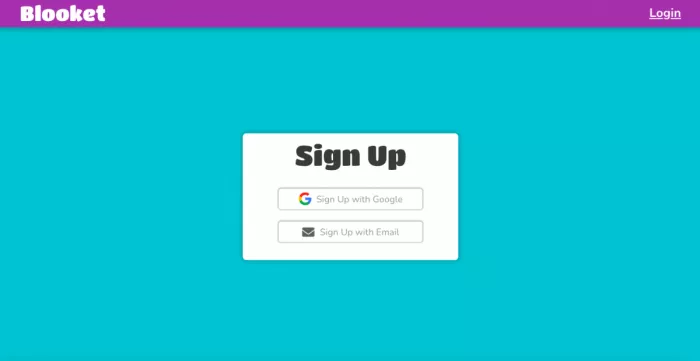
- Sign up with Google, or enter an email and create a password.
- Verify the email if you registered that way, then open your new dashboard.
If you pick the wrong role at sign-up (a common reason a teacher account looks limited), you can correct it later under account settings rather than starting over.
Age requirement: in the United States, children under 13 (and under 16 in many other regions) cannot create standalone accounts. Younger students take part through a teacher or with parental supervision, in line with COPPA and FERPA. Guest play with a Game ID still works for everyone.
Blooket Join: Playing With a Game Code
Joining a live game is the part that needs no account at all, and it is where "blooket join" and "blooket play" searches usually land.
- Go to play.blooket.com.
- Enter the Game ID (a short numeric code) shared by the host.
- Type a nickname. For privacy, avoid real names.
- Wait in the lobby for the host to start.
A Game ID is only active while a host has that game running, so there is no such thing as a permanent code that always works. To get one, either join a class where a teacher is hosting, or host your own set in a second tab and join it from there. Signed-in students keep their coins and Blooks after the round; guests do not, since guest sessions save nothing.
Inside the Blooket Dashboard
After you sign in, the dashboard is your home base. Teachers and students see the same layout with slightly different tools.
| Section | What it does |
|---|---|
| Home | Recent activity, announcements, and quick links back into games |
| Discover | The public library of community question sets, searchable by subject or keyword |
| My Sets | Create, edit, and organize your own question sets |
| Favorites | Bookmarked sets saved for later |
| Stats / History | Past sessions with per-question and per-student performance |
| Homework | Self-paced assignments and their completion data |
| Market | The in-game store where earned tokens unlock Blooks |
| Settings | Email, password, role, and account details |
Teacher Tools After You Log In
Signing in as a teacher unlocks the classroom side of the platform:
- Create sets: build questions with text, images, and math symbols. In 2026, Blooket added an AI generator that can produce a full question set from a topic you type, which cuts prep time sharply.
- Import content: pull existing material in rather than rebuilding it from scratch.
- Host live games: launch a session and share the Game ID with the class in real time.
- Assign homework: send a self-paced link students complete on their own schedule.
- Track performance: review who answered what, and spot where a class is struggling.
Everything above is included in the free plan, which is worth knowing before anyone pays for anything.
Homework Mode and Solo Play
Homework Mode lets teachers assign a game with a start and end date. Students play at their own pace, progress is tracked automatically, and the results break down by question and by participant. Assignments appear under the Homework tab on both the teacher's and the student's dashboards once published.
Solo mode is the self-study version. A signed-in student opens any set, clicks Solo, and practices alone in modes like Tower Defense or Cafe with no competition and no pressure. Blooket's 2026 Save States let solo players stop partway and pick up later, which makes it genuinely useful for test prep rather than just a time-filler.
Blooks, Tokens, and the Market
Blooks are the collectible character avatars, and there are hundreds of them across common, rare, and ultra-rare tiers. Students earn tokens by playing (live or homework), then spend those tokens in the Market on boxes that unlock random Blooks. The key thing for teachers: Blooks are purely cosmetic. They change nothing about scores or answers, so the reward system works as light motivation without affecting learning outcomes.
Blooket Login Not Working: Fixes That Actually Help
During peak classroom hours, heavy traffic can leave Blooket slow to load or throwing gateway errors. Before troubleshooting your own device, rule out a platform-wide outage: open status.blooket.com, the official status page. It shows four services, Dashboard, Authentication, Hosting, and Homework. If all four are green but Blooket still will not load for you, the problem is local. If one shows degraded, it is on Blooket's end and waiting is the only fix.
| What you see | Likely cause | Fix |
|---|---|---|
| 502 Bad Gateway / "No Healthy Upstream" | Servers briefly overloaded | Wait a minute, then hard-refresh (Ctrl+Shift+R on Windows, Cmd+Shift+R on Mac). Refreshing repeatedly does not speed it up. |
| Blank white screen or endless spinner | Cached data, an extension, or a network filter | Open a private window (Ctrl+Shift+N) to disable extensions, or clear cache and cookies for blooket.com. |
| Google login fails or loops | Signed into the wrong Google account | Sign out of all Google accounts in that browser, then sign back into only the correct one and retry. |
| "Invalid credentials" | Wrong password, or an account created with Google | Reset the password, or switch to Google sign-in if that is how the account was made. |
| Progress did not save | Connection dropped on the results screen | Keep the tab open for a few seconds after a round ends before closing it, so rewards sync. |
If none of that works, the help center at help.blooket.com has step-by-step articles, and support can be reached at [email protected]. Sending a screenshot of the exact error speeds up the reply.
Blooket Blocked on a School Network
School devices often run content filters (tools like GoGuardian) that block gaming domains even when Blooket itself is running fine. A blank screen on a school Chromebook usually points to filtering, not an outage. The right fixes here are the ones that keep you inside school rules:
- Ask the teacher for a direct link. A Solo or Homework link shared through Google Classroom is often categorized as education and loads where the marketing page is blocked. This is the cleanest path for students.
- Ask IT to allowlist Blooket. If a class relies on Blooket, the district admin can whitelist its domains. Teachers are usually the ones who make this request.
- Confirm it is the filter, not your account. Checking status.blooket.com and trying the same login on a home network quickly tells you whether the block is the school network or something else.
Trying to route around a school's filter with proxies or VPNs typically violates the acceptable-use policy students agree to, and can get a device or account flagged. The teacher-link route solves the same problem without that risk.
Blooket Hacks: An Honest Warning
Videos promising infinite coins, auto-answer, or instant Blooks through scripts circulate constantly, and it is worth being straight about them. Blooket's team actively patches these exploits, and most viral "glitches" stop working within a day or two. Accounts caught using token or auto-answer scripts can be flagged, reset, or banned, which means losing every Blook and coin earned legitimately. There is no version of this that is worth risking a real account over, so the honest advice is to skip it. Earning tokens through normal play is slower but keeps your account intact.
Blooket Account Safety and Student Privacy
Blooket was built for classrooms, and a few safety features matter for parents and teachers:
- No chat. There is no messaging function, so players cannot contact each other or share personal information in-game.
- Nicknames, not real names. Students can join with an anonymous nickname, and hosts can remove any inappropriate one before starting.
- Compliance. Blooket aligns with COPPA and FERPA, the United States laws covering children's online privacy and student records.
- Watch the URL. Fake login pages designed to steal credentials do exist. Only sign in at blooket.com or id.blooket.com, and never through a login link from a random email or social post without checking the address first.
Guest players leave almost no stored data, while signed-in accounts save gameplay progress and settings. No academic grades are exported automatically.
Blooket Pricing: Free vs Plus
Blooket is free for the features most classrooms use: creating sets, hosting games, joining, collecting Blooks, and browsing the community library. Logging in never costs anything. The optional Blooket Plus plan runs about $2.99 per month and adds extras like larger player limits and more detailed reports. It is a convenience upgrade, not a requirement, and nothing in this guide depends on having it.
Blooket Login FAQ
How do I log in to Blooket with a school account?
Use Google sign-in with your school Google Workspace account, or the Clever button if your district enabled it. If you see a Clever option on the login page, your school uses it; if not, Google is the school-account route.
Why can't I log in to Blooket?
The usual causes are a wrong password, using email login on an account that was created with Google, cached browser data, or a school firewall. Check status.blooket.com first to rule out an outage, then work through the error table above.
What is the direct Blooket login page?
It is id.blooket.com/login. You can also click Login at the top right of blooket.com to reach the same place.
Can students log in to Blooket without a teacher account?
Yes. Students create their own accounts at id.blooket.com/signup by choosing the student role. A teacher account is not required to sign up or to join games.
Can I join a Blooket game without logging in?
Yes. Go to play.blooket.com, enter the Game ID, and pick a nickname. Guest play saves no progress, so log in first if you want to keep coins and Blooks.
How do I reset a forgotten Blooket password?
Click Forgot Password on the login page, enter your registered email, and follow the reset link Blooket sends. Use the link promptly, since it expires. If you signed up with Google, there is no password to reset, so use Google sign-in instead.
Can I log in on multiple devices?
Yes. Blooket runs in any modern browser, so you can sign in from a laptop, phone, tablet, or Chromebook, and your sets, tokens, and Blooks stay in sync.
Is Blooket down right now?
Check status.blooket.com. If all four services show green there but the site still will not load for you, the issue is your device, browser, or school network rather than Blooket.
Once the two portals are clear and the right sign-in method is matched to how the account was made, logging in to Blooket is quick and consistent. Bookmark id.blooket.com/login for the account side and play.blooket.com for joining games, keep status.blooket.com handy for the rare outage, and most access headaches disappear.
This guide was written and tested against Blooket's live login, join, and status pages during the 2025–2026 school year. It is an independent resource and is not affiliated with Blooket LLC. Product details such as pricing and features can change; check Blooket's official pages for the latest.

Comments