
Table of Contents
- Quick Verdict: The Five Tools at a Glance
- The Same PPT Brief I Gave to All Five Tools
- How I Tested: My Methodology
- The Main Comparison Table
- Beautiful.ai: My Experience Creating a Real Presentation With It
- Canva AI Presentations: My Experience Creating a Real Presentation With It
- Plus AI: My Experience Creating a Real Presentation With It
- MagicSlides: My Experience Creating a Real Presentation With It
- SlidesAI: My Experience Creating a Real Presentation With It
- Feature-by-Feature Comparison
- The first draft test: which tool gave me the most usable slides?
- The design polish test: which deck looked client-ready?
- The editing stress test: which tool let me fix slides without fighting the interface?
- The export test: which tool worked best after downloading the PPT?
- The data slide test: which tool handled tables, charts, and graphs better?
- The brand consistency test: which tool kept fonts, colors, and layouts clean?
- The AI writing test: which tool avoided generic slide text?
- The collaboration test: which tool works better for teams?
- Pricing Reality Check
- Pros and Cons at a Glance
- Limitations I Would Not Ignore
- The Privacy Check I Would Do First
- Mistakes I Would Avoid With AI PPT Makers
- Alternatives Worth Checking
- Final Ranking
- Final Verdict
The Blank Slide Problem That Made Me Test These Tools
I had to create a presentation quickly, and the hardest part was never collecting the information. I already had the points. The real struggle was turning raw notes into a clean, professional PPT with proper slide flow, visual hierarchy, charts, headings, and design consistency, all under time pressure. Blank slides have a way of staring back at you.
That is exactly the gap the best AI presentation tools promise to close. Feed them a prompt, an outline, a document, or a wall of text, and they hand back a structured deck in minutes. The promise is appealing. The reality, as I found, is more mixed, which is why I stopped reading roundups and ran my own test.
So I gave the same brief to five tools and built the same deck five times. I judged each one the way an actual user would, not the way a feature list does:
• Can it create a usable first draft, or just a pretty skeleton?
• Does the finished deck look professional enough to show a client?
• Does the AI write meaningful slide content, or filler?
• Can I edit the slides easily, or do I fight the interface?
• Can I export cleanly to PowerPoint or Google Slides?
• Does it handle charts, tables, and visuals properly?
• Is the pricing worth it for the value I get?
• Is it useful across students, marketers, founders, teachers, consultants, and teams?
Quick Verdict: The Five Tools at a Glance
If you only read one section, read this one. The short version is that there is no single winner, only a best tool for the kind of deck you are building.
| Rank | Tool | Best for | My quick take |
| 1 | Beautiful.ai | Polished business presentations | Best when the deck has to look professional and stay consistent without much design effort |
| 2 | Canva AI | Design freedom and templates | Best for users who want an AI draft plus full manual control afterwards |
| 3 | Plus AI | PowerPoint and Google Slides workflow | Best when you want AI inside the slide tools you already use |
| 4 | MagicSlides | Fast AI PPT generation | Best for quick drafts from prompts, documents, URLs, and videos |
| 5 | SlidesAI | Text-to-slide drafts | Best for turning long, prepared text into simple slide drafts |
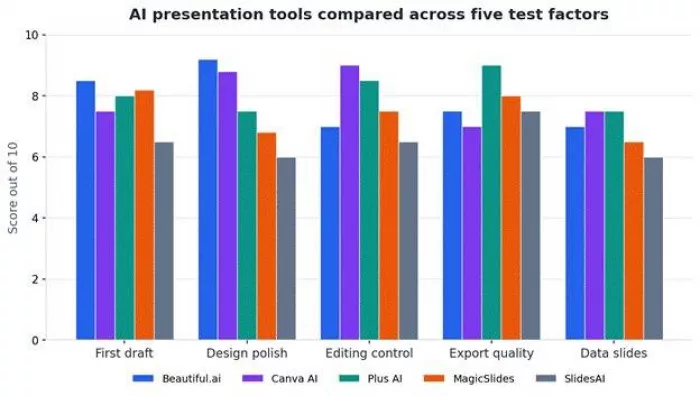
How the five tools scored across the core test factors. Scores reflect my hands-on testing, not vendor claims.
Keep the verdict in context. The best tool genuinely depends on the type of presentation. A founder building an investor deck and a teacher building a lesson have different winners, and the rest of this review explains why.
The Same PPT Brief I Gave to All Five Tools
To make the comparison fair, every tool got the exact same instruction. No tweaking the prompt to flatter one platform.
“Create a 10-slide marketing strategy presentation for a small business launching a new AI productivity app. Include market context, target audience, problem statement, solution, key features, competitor comparison, marketing channels, budget allocation, timeline, and final recommendation.”
That single brief let me compare the things that actually decide whether a tool saves time:
• First draft quality and slide structure
• Design polish out of the box
• The quality of the AI-written slide text
• Visual suggestions, icons, and imagery
• How it handled the competitor comparison and budget slides (the data slides)
• Editing control once the draft existed
• Export quality to PPT, PDF, and Google Slides
• Pricing value for what it produced
Running one brief through all five removed the guesswork and made the differences obvious.
How I Tested: My Methodology
I scored each tool on nine factors. Here is what each one means and what I actually checked.
| Testing factor | Why it matters | What I checked |
| First draft quality | Shows whether the AI saves real time | Slide flow, titles, depth of content |
| Design polish | Decides whether the deck looks presentable | Layouts, spacing, fonts, visual hierarchy |
| Editing control | AI decks always need changes | Text editing, layout changes, theme controls |
| Export quality | PPT users need clean downloads | PPTX, PDF, Google Slides compatibility |
| Data slides | Serious decks need charts and tables | Charts, tables, comparison slides |
| Brand consistency | Business decks need visual control | Colors, fonts, templates, brand kits |
| AI writing quality | Slide text must not feel generic | Clarity, specificity, business relevance |
| Pricing value | Readers need buying guidance | Free plan, paid plan, limits |
| Privacy | Users may upload sensitive notes | File handling, business data concerns |
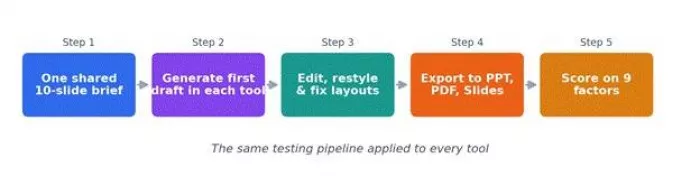
The same pipeline ran for every tool: one brief, a generated first draft, an editing pass, an export, and a score.
The Main Comparison Table
This is the at-a-glance grid, with practical notes rather than one-word grades.
| Tool | First draft | Design polish | Editing control | PPT / Slides export | Main limitation |
| Beautiful.ai | Strong, well-ordered business flow | Highest in the group, very consistent | Guided rather than free; layouts auto-adjust | PPTX and PDF; formatting can shift | Rigid design system, no permanent free plan |
| Canva AI | Good, occasionally generic | Excellent once you tidy it | The most flexible editor here | PPTX is Pro-only; layouts shift on export | AI structure needs manual cleanup |
| Plus AI | Solid and professional | Clean, less flashy | Edits live in Slides or PowerPoint | Best in class; you are already in the file | Less visual wow than Canva or Beautiful.ai |
| MagicSlides | Fast and usable from any source | Functional, needs polish | In-Slides editing plus AI agent | Exports to Slides and PPTX | Design polish trails the leaders |
| SlidesAI | Basic, organizes existing text well | Simple, template-driven | Limited depth | Works inside Slides and PowerPoint | Shallow design and editing depth |
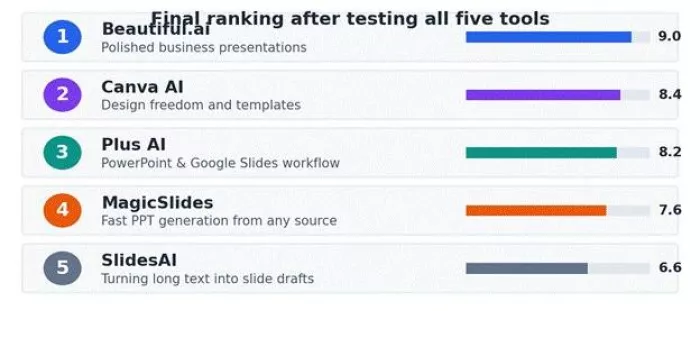
My final ranking after building the same deck in all five tools. Scores are explained tool by tool below.
Beautiful.ai: My Experience Creating a Real Presentation With It

Beautiful.ai felt like the safest choice when the deck had to look professional.
The first few minutes told me a lot
Beautiful.ai opens by asking what you want to present, then builds an outline before it designs anything. The interface is clean and clearly aimed at business users rather than hobbyists. Within a couple of minutes I had a structured marketing-strategy deck that already looked like something I could stand behind in a meeting.
It leans toward founders, consultants, sales teams, and agencies. A student could use it, but the polish, the guardrails, and the pricing all point at work, not coursework.
The first draft
This is where Beautiful.ai was strongest. The slide order made sense, the headings were business-appropriate rather than vague, and the layouts were the most consistent of anything I tested. The competitor comparison and budget slides came through as proper structured layouts instead of dumped text.
The Smart Slides system is the reason. It automatically handles spacing, alignment, and hierarchy as you add content, so the deck never drifts into the lopsided look that AI drafts often have. The first draft was genuinely close to usable.
The editing experience made or broke it
Editing is guided rather than free. You pick from intelligent layouts and the system arranges everything to stay tidy. For most business decks this is a feature; it keeps non-designers from breaking the design. For anyone who wants a logo placed at an exact pixel, it can feel restrictive.
Brand controls, themes, and color management are solid, and team features support shared libraries and consistency. The trade-off is creative freedom, which is the deliberate cost of that polish.
Where it saved me the most time
• Producing a clean, presentable first draft with almost no layout fiddling
• Keeping every slide visually consistent across a long deck
• Building pitch decks, sales decks, and internal reports that look finished
• Applying brand colors and fonts across the whole presentation at once
Where I still had to edit manually
• Custom layouts the system does not want to allow
• PowerPoint exports, where formatting occasionally shifts and needs cleanup
• Any deck that needs an unusual, highly creative visual style
• Fact-checking the AI-written claims before presenting
Pros and cons
| Pros | Cons |
| Best-in-class design polish and consistency; strong for business and team use; Smart Slides removes layout work; good brand controls. | Rigid design system limits creative control; no permanent free plan (14-day trial); team pricing jumps sharply; export formatting can shift. |
My personal verdict
Beautiful.ai is the tool I would reach for when the deck has to look professional and I do not have time to design it. It is best for business users, consultants, agencies, and teams who value polish over creative freedom. It is not the choice for casual one-off decks or for anyone who wants pixel-level control. It earns the top spot in this group for exactly one reason: it most reliably produced a deck I would show a client.
Canva AI Presentations: My Experience Creating a Real Presentation With It
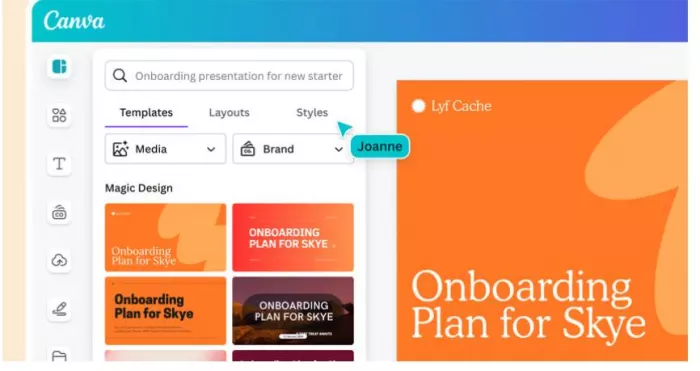
Canva gave me the most design freedom after the AI draft was ready.
The first few minutes told me a lot
Canva's Magic Design turned my brief into a full deck from a single prompt, and if you have ever used Canva, the workflow feels instantly familiar. You type what you want, pick a direction, and a draft appears that you can immediately drag, drop, and restyle.
It suits creators, marketers, students, teachers, and small businesses. The pull is not pure automation; it is the enormous template and asset library waiting the moment the AI hands off.
The first draft
The first draft was good but occasionally generic, the way single-prompt generation tends to be. The structure was reasonable and the visuals were attractive, though the slide text sometimes needed sharpening to feel specific to my fictional AI productivity app rather than to marketing in general.
Where Canva pulled ahead was the raw visual material: icons, images, charts, and graphics are abundant, so improving a weak slide is a matter of swapping in something better rather than starting over.
The editing experience made or broke it
This is Canva's home turf. Editing is the most flexible of anything I tested. Text, layout, color, fonts, images, and charts are all fully under your control, the brand kit keeps things consistent, and the drag-and-drop model is forgiving for beginners.
The catch is that the AI draft is a starting point, not a finished deck. You will spend real time cleaning up structure and tightening copy. The freedom that makes Canva great also means it does less of the thinking for you than Beautiful.ai does.
Where it saved me the most time
• Restyling and polishing slides quickly with a huge asset library
• Producing social, marketing, and creative decks that look on-brand
• Swapping weak AI visuals for better ones in seconds
• Reusing brand kits across many presentations
Where I still had to edit manually
• Tightening generic AI copy into something specific
• Fixing the overall structure the AI proposed
• PowerPoint export, which is Pro-only and can shift layouts
• Reducing text-heavy slides the AI tends to produce
Pros and cons
| Pros | Cons |
| The most flexible editor here; massive template and asset library; strong brand kit; beginner-friendly; commercial rights on AI content. | AI structure needs manual cleanup; copy can be generic; PPTX export is Pro-only and shifts layouts; less hands-off than rivals. |
My personal verdict
Canva AI is what I would use when I want an AI head start but also want full control to make the deck mine. It is best for marketers, creators, students, and small teams. It is less ideal if you want the tool to do nearly everything for you. It lands second because it asks for more manual work than Beautiful.ai, but rewards that work with far more flexibility.
Plus AI: My Experience Creating a Real Presentation With It
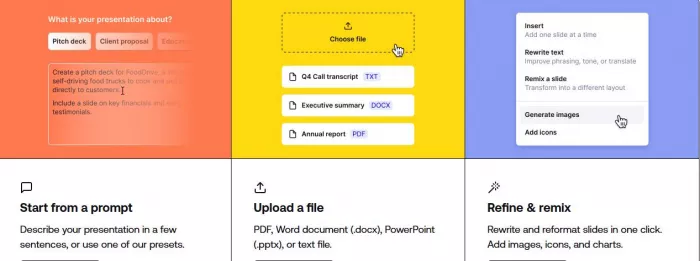
Plus AI made the most sense when I wanted to stay inside PowerPoint or Google Slides.
The first few minutes told me a lot
Plus AI is different by design. Instead of being a separate platform, it installs as an add-on inside Google Slides and PowerPoint and generates slides right there. For me that removed the single most annoying step in the whole category: moving the finished deck back into the tool everyone at work actually uses.
It is aimed squarely at professionals, consultants, educators, and teams who already live in Google Workspace or Microsoft 365 and do not want to learn a new editor.
The first draft
The first draft was solid and professional, if less flashy than Canva or Beautiful.ai. Because the slides are generated natively, there is no import step and no surprise formatting later. The structure was sensible and the copy was workmanlike.
It also converts documents and PDFs into decks, and includes rewrite and remix tools for existing slides, which is useful when you are improving a deck rather than starting from zero.
The editing experience made or broke it
Editing simply happens in Slides or PowerPoint, with all the collaboration, comments, and version history those tools already give you. That native integration is the whole point and the strongest part of the experience.
The limitation is visual ambition. Plus AI produces clean, correct slides, but it will not give you the designed-from-scratch wow factor that Beautiful.ai's layouts or Canva's library can.
Where it saved me the most time
• Skipping the export step entirely since slides are already in your file
• Turning existing documents and PDFs into decks
• Rewriting and reformatting slides you already have
• Keeping the whole workflow inside familiar collaboration tools
Where I still had to edit manually
• Adding visual flair beyond clean, standard layouts
• Fact-checking AI-generated content
• Designing anything that needs a distinctive creative look
• Working within the trial credits before committing to a plan
Pros and cons
| Pros | Cons |
| Native to Google Slides and PowerPoint; no export friction; document-to-deck conversion; over a million installs and strong marketplace rating. | Less visual wow than rivals; no permanent free plan (7-day trial); design depth trails standalone tools. |
My personal verdict
Plus AI is the most practical option if your team already works in PowerPoint or Google Slides. It is best for professionals, consultants, and teams who value workflow over visual spectacle. It is not the pick if you want the most striking-looking slides. It ranks third because the native workflow is a real, daily advantage, even though the design ceiling is lower than the top two.
MagicSlides: My Experience Creating a Real Presentation With It
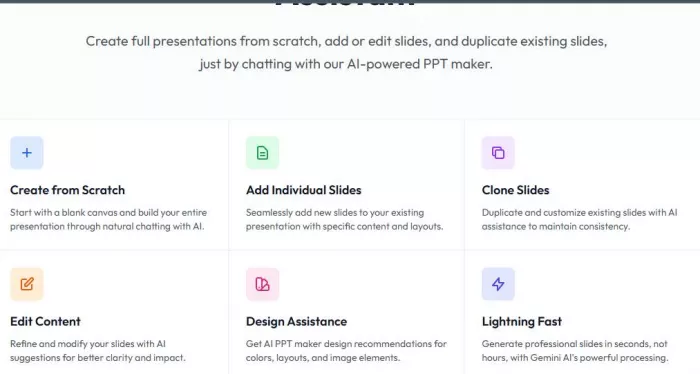
MagicSlides was the quickest route from raw content to a usable PPT draft.
The first few minutes told me a lot
MagicSlides is built for speed and for variety of input. It will turn a topic, a block of text, a PDF, a DOCX, a URL, or a YouTube video into a structured deck, and it works as a Google Slides add-on as well as a web app. I gave it my brief and had a draft almost immediately.
It is especially popular with students and educators, partly because of that input flexibility and its very broad language support, and partly because turning a video or a document into slides is exactly what classroom and assignment work needs.
The first draft
The first draft was fast and usable. Slide structure came through cleanly and the content was a reasonable starting point, though the design was more functional than refined. The competitor and budget slides were serviceable rather than impressive.
What stood out was how little friction there was between raw content and a draft. If your priority is getting from a source to slides in the shortest possible time, MagicSlides is hard to beat.
The editing experience made or broke it
You edit inside Google Slides, or use the built-in AI agent to make bulk changes across slides with natural-language commands, which is a genuinely handy touch for fixing several slides at once.
The design ceiling is the main constraint. You can get a clean, presentable deck, but reaching the polish of Beautiful.ai or a tidied Canva deck takes manual work.
Where it saved me the most time
• Generating a draft from a topic, document, URL, or video in seconds
• Classroom, lecture, and assignment presentations
• Bulk-editing several slides at once with the AI agent
• Quickly summarizing a long source into slide form
Where I still had to edit manually
• Design polish to reach a client-ready look
• Verifying facts pulled from a video or web source
• Improving generic or thin slide copy
• Checking current free-tier limits, which have changed recently
Pros and cons
| Pros | Cons |
| Fastest content-to-deck path; accepts text, PDF, DOCX, URL, and video; Google Slides add-on; AI agent for bulk edits; broad language support. | Design polish trails the leaders; data slides are basic; free-tier limits have shifted and should be re-checked. |
My personal verdict
MagicSlides is what I would use when I need a fast draft from existing content and I am willing to polish it myself. It is best for students, educators, and anyone converting documents or videos into slides quickly. It is not the choice for a high-stakes, design-led deck. It ranks fourth: very strong on speed and input flexibility, weaker on finish.
SlidesAI: My Experience Creating a Real Presentation With It
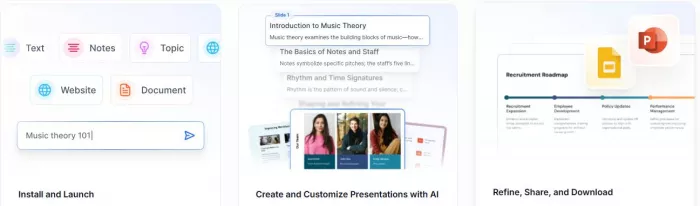
SlidesAI worked best when I already had text and just needed slides quickly.
The first few minutes told me a lot
SlidesAI is the most focused tool in this group. Its core move is text-to-presentation: paste your content, and it generates structured slides inside Google Slides, with PowerPoint support as well. The setup is simple and there is almost nothing to learn.
That focus makes it a fit for students, teachers, writers, and anyone who already has prepared notes, a report, or an outline and wants it turned into slides without much effort.
The first draft
The first draft did exactly what the tool promises: it organized my existing text into a tidy slide structure. It was the most basic draft of the five, with simple, template-driven design, but for converting a wall of text into a starting deck it did the job.
Where it is weaker is depth. The slide design and the richness of the content trail Canva and Beautiful.ai noticeably, and the data slides were the simplest of the group.
The editing experience made or broke it
Editing relies on the native Google Slides or PowerPoint tools plus a set of color and font presets. There is content refinement for tone and length, which helps, but the depth of design control is limited compared with a full editor.
If you go in expecting a quick draft to refine rather than a finished, designed deck, the experience matches expectations well.
Where it saved me the most time
• Turning long, prepared text into a slide draft fast
• Converting notes, reports, and outlines into slides
• Producing simple student or classroom decks
• Working inside Google Slides without leaving it
Where I still had to edit manually
• Most of the visual design beyond basic presets
• Adding strong data slides, charts, and tables
• Sharpening simple AI copy
• Anything that needs advanced layout control
Pros and cons
| Pros | Cons |
| Dead-simple text-to-slides; native Google Slides and PowerPoint support; usable free tier; very broad language support. | Shallowest design and editing depth; basic data slides; not suited to design-led or high-stakes decks. |
My personal verdict
SlidesAI is the tool I would use when I already have the text written and simply want slides quickly. It is best for students, teachers, and writers with prepared content. It is not the pick for polished business or marketing decks. It ranks fifth: reliable at its narrow job, but outclassed everywhere design depth matters.
Feature-by-Feature Comparison
Building the same deck five times made the head-to-head differences clear. Here is how the tools stack up factor by factor.
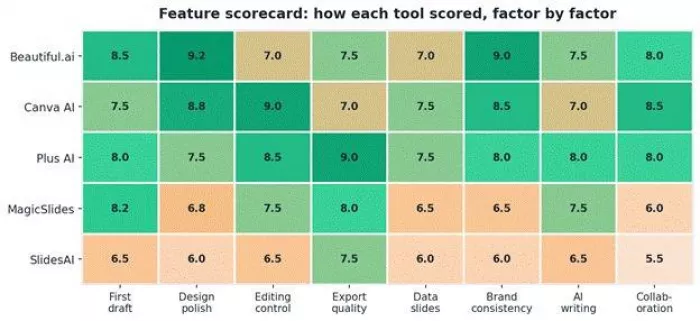
The full feature scorecard. Greener cells are stronger; the numbers are my hands-on scores out of ten.
The first draft test: which tool gave me the most usable slides?
Beautiful.ai produced the most usable first draft, with the strongest structure and the most business-appropriate headings. MagicSlides and Plus AI were close behind on flow. Canva looked good but needed copy tightening, and SlidesAI organized text neatly but stayed basic. The deciding factor was how much editing each draft demanded before it was presentable.
The design polish test: which deck looked client-ready?
Beautiful.ai won on polish thanks to Smart Slides keeping spacing, fonts, and hierarchy consistent. A tidied Canva deck can match or beat it, but only after manual work. Plus AI was clean if understated, while MagicSlides and SlidesAI needed the most help to look finished.
The editing stress test: which tool let me fix slides without fighting the interface?
Canva was the clear winner for flexible editing, with full control over every element. Plus AI was excellent in a different way, since edits happen in the Slides or PowerPoint tools you already know. Beautiful.ai's guided editing keeps decks tidy but limits freedom. MagicSlides' AI agent for bulk edits is a nice touch, and SlidesAI was the most limited.
The export test: which tool worked best after downloading the PPT?
Plus AI effectively wins the export question by removing it: the slides are already in your PowerPoint or Google Slides file. Among the rest, exports generally worked but layouts could shift on download, so a review pass was always worth the few minutes. Canva's PPTX export is Pro-only.
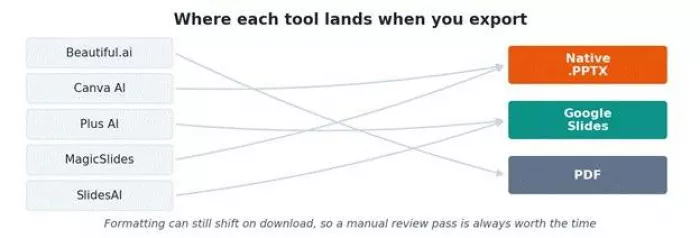
Where each tool lands on export. Plus AI avoids the export step entirely; the others may need a formatting check.
The data slide test: which tool handled tables, charts, and graphs better?
This was the weakest area across the board. Plus AI and Canva handled tables and basic charts best, Beautiful.ai produced clean structured comparison layouts, and MagicSlides and SlidesAI were the most basic. In every case I verified the numbers myself, because AI-generated charts and figures cannot be trusted without checking.
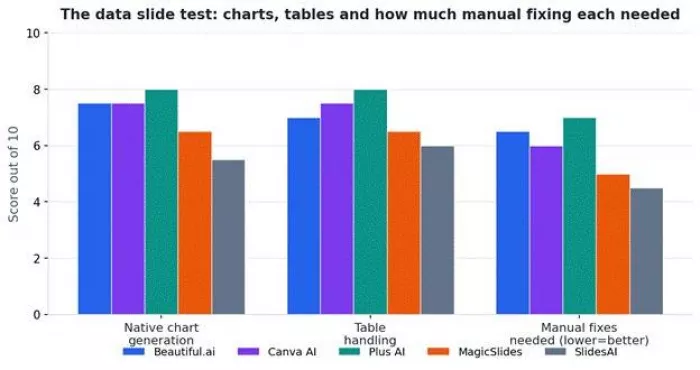
The data slide test. Note the third group: a lower 'manual fixes' bar is better, and no tool eliminated the need to check figures.
The brand consistency test: which tool kept fonts, colors, and layouts clean?
Beautiful.ai and Canva led here, with strong brand kits and templates that hold colors and fonts steady across a deck. Plus AI applies branding well on its higher tiers. MagicSlides and SlidesAI offer presets but less governed control, which matters more for teams than for individuals.
The AI writing test: which tool avoided generic slide text?
None of them fully escaped generic phrasing, which is the honest truth about AI slide copy today. Beautiful.ai and Plus AI produced the most business-relevant text; Canva and MagicSlides sometimes drifted into filler; SlidesAI mostly reorganizes the text you give it, so its quality depends on your input. Every tool needed a human editing pass on the words.
The collaboration test: which tool works better for teams?
Plus AI inherits the full collaboration features of Google Slides and PowerPoint, which is hard to beat. Beautiful.ai and Canva have strong team workspaces, shared libraries, and brand controls on their team tiers. MagicSlides and SlidesAI lean toward individual use, with lighter team features.
Pricing Reality Check
Pricing in this category changes often, so treat these figures as a snapshot. The table reflects what each official site listed at the time of writing.
Pricing and free-plan limits should be verified directly from each official website before publishing, because AI presentation tools frequently change credits, exports, and plan features.
| Tool | Free plan / trial | Paid plan starting price | Worth paying for? | Pricing notes |
| Beautiful.ai | 14-day trial (card required), no permanent free plan | Pro about $12/mo billed annually | Yes, for business decks | Team about $40/user/mo; one-off deck about $45; students with .edu may get a free year |
| Canva AI | Free plan with limited AI credits and watermarks on premium assets | Pro about $15/mo (about $120/yr) | Yes, if you design often | AI features run on a shared monthly credit pool; PPTX export is Pro-only |
| Plus AI | 7-day trial with AI credits, no permanent free plan | Basic about $10/mo billed annually | Yes, for PPT and Slides users | Team tier around $30/mo; reports vary between $10 and $20 depending on billing |
| MagicSlides | Free tier exists but limits have shifted recently; re-check | Lite plans from roughly $8/mo | Yes, for high-volume drafts | API priced per generation; free allowance has changed, so verify current terms |
| SlidesAI | Free plan, about 3 presentations per month | Pro about $10/mo (about $8.33 billed annually) | Only for light use | Premium about $20/mo for unlimited presentations and larger input limits |
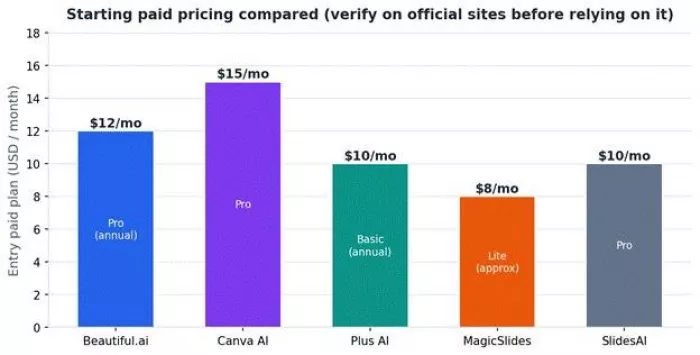
Starting paid pricing compared. Annual billing usually lowers these figures; always confirm on the official site.
The headline pattern: SlidesAI and MagicSlides are cheapest to start, Plus AI and Beautiful.ai sit in the mid-range with strong value for their use cases, and Canva's price buys an entire design suite rather than a presentation tool alone. Team pricing, especially Beautiful.ai's, climbs fast, so factor in seat counts before committing.
What Reviews and Ratings Actually Say
I treated my own hands-on testing as the primary signal, then cross-checked it against public review platforms like G2, Capterra, Trustpilot, Product Hunt, and the Google Workspace Marketplace, plus user discussion on Reddit and Quora. Exact, current ratings move around and are not always consistent across sites, so I focused on recurring themes rather than precise scores.
Where verified third-party review data was thin or inconsistent, I treated hands-on testing, official documentation, and user discussion as the more useful signals.
Common positive feedback
• Beautiful.ai is widely praised for speed to a polished, professional deck
• Canva is consistently loved for its template library and ease of use
• Plus AI's native Google Slides and PowerPoint integration is a recurring favorite, reflected in over a million installs and a strong marketplace rating
• MagicSlides is popular with students and teachers for fast drafts from many input types
Common complaints
• Billing practices and the trial-to-paid transition draw criticism for Beautiful.ai on some platforms
• PowerPoint export formatting issues come up repeatedly across several tools, including Canva and Beautiful.ai
• Generic AI text and the need for manual cleanup are near-universal themes
• Pricing jumps for teams are a common concern, especially for Beautiful.ai
Pros and Cons at a Glance
| Tool | Pros | Cons |
| Beautiful.ai | Top design polish and consistency; great for business and teams; Smart Slides removes layout work | Rigid design system; no permanent free plan; team pricing jumps; export can shift |
| Canva AI | Most flexible editor; huge asset library; strong brand kit; beginner-friendly | AI structure needs cleanup; copy can be generic; PPTX export is Pro-only |
| Plus AI | Native to PowerPoint and Slides; no export friction; document-to-deck conversion | Less visual wow; no permanent free plan; lower design ceiling |
| MagicSlides | Fastest content-to-deck; many input types including video; AI bulk-edit agent | Design trails leaders; basic data slides; free limits have shifted |
| SlidesAI | Simple text-to-slides; native Slides and PowerPoint; usable free tier | Shallow design and editing; basic data slides; not for high-stakes decks |
Limitations I Would Not Ignore
None of these tools is a finished-deck button, and pretending otherwise leads to bad presentations. The honest limitations:
• AI slides still need a human editing pass before they are presentable
• AI-generated slide text is often generic and needs sharpening
• Charts, graphs, and any numbers must be fact-checked, because the AI can get them wrong
• Suggested visuals do not always match the topic
• Export formatting can break, particularly into PowerPoint
• Free plans are limited, and some have changed recently
• Some tools are built for drafts, not final decks
• Brand consistency varies a lot between tools and tiers
• Confidential business data should not be uploaded without checking the privacy terms first
• Investor decks, legal decks, and client strategy decks still need expert human review
The Privacy Check I Would Do First
Before uploading notes, PDFs, or client decks into any of these tools, I would run through a short privacy checklist. This matters even more for agencies, consultants, and anyone handling someone else's confidential material.
• Whether uploaded content is stored, and for how long
• Whether files or prompts are used to train the provider's models
• How business and client data is protected, and whether enterprise terms exist
• What team permission and access controls are available
• Whether you can delete your data and how
• Whether client confidentiality obligations allow third-party uploads at all
• For students, whether assignment content is handled appropriately
When in doubt, keep genuinely sensitive material out of these tools, or use enterprise plans with contractual data protections. A polished deck is not worth a confidentiality breach.
Which Tool I Would Pick, by Use Case
The single best answer depends entirely on what you are building. Here is how I would choose.
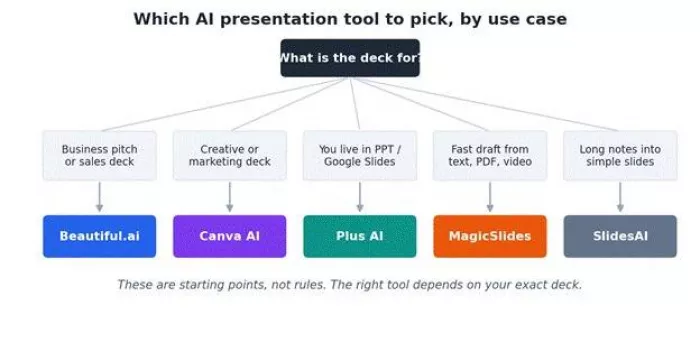
A quick decision guide. These are starting points, not rules; the right tool depends on your exact deck.
For a fast student presentation
MagicSlides or SlidesAI. If you are starting from a topic, a document, or a video, MagicSlides gets you a draft fastest. If you already have your text written, SlidesAI turns it into slides with the least fuss.
For a business pitch deck
Beautiful.ai. When the deck has to look professional and consistent in front of investors or clients, its polish and Smart Slides layouts give the most reliable result with the least design effort.
For marketing reports
Canva AI. The template and asset library, brand kit, and editing flexibility make it the natural fit for marketing and creative decks that need to look distinctive and on-brand.
For training or workshop slides
MagicSlides or Plus AI. MagicSlides is excellent for converting source material and videos into teaching decks; Plus AI is ideal if your workshop materials already live in Slides or PowerPoint.
If your team already works in PowerPoint
Plus AI. It generates and edits slides natively inside PowerPoint and Google Slides, so there is no platform switch, no export step, and no loss of your existing collaboration features.
For turning long notes into slides
SlidesAI. Its entire purpose is text-to-presentation, so when you have a long set of notes or a report and want slides quickly, it is the most direct path.
Mistakes I Would Avoid With AI PPT Makers
Most bad AI decks come from a handful of avoidable habits. The ones I would watch for:
1. Copying AI slide text straight to the deck without reading and editing it
2. Letting the tool create too many slides instead of cutting to what matters
3. Leaving generic, AI-sounding titles in place
4. Not checking the facts, figures, and statistics the AI produces
5. Using AI-suggested images that do not actually fit the topic
6. Ignoring your own brand colors and fonts
7. Exporting and sharing without reviewing the formatting first
8. Uploading confidential data without checking the privacy terms
9. Trusting AI-generated charts without verifying the numbers behind them
10. Cramming every slide with text instead of keeping it scannable
Alternatives Worth Checking
These five were not the only tools I considered. If none fits, these alternatives each cover a different angle.
| Alternative | Best for | How it compares with the top five |
| Pitch | Team-based presentation workflow | Strong on collaboration and branded decks |
| Chronicle | Interactive professional decks | More modern, storytelling-led style |
| Prezi | Non-linear presentations | Better for zoom-style, motion-based decks |
| Tome | Story-style presentations | More narrative and document-like |
| Slidebean | Startup pitch decks | Useful for founders and investor decks |
| Microsoft Copilot for PowerPoint | Microsoft 365 users | Best if you already use PowerPoint deeply |
| Slidesgo AI Presentation Maker | Templates and quick decks | Useful for students and basic presentations |
| Simplified AI Presentation Maker | Marketing content workflows | Good for creators and marketers |
| Presentations.AI | AI-first presentation generation | Worth comparing for automated deck creation |
Final Ranking
| Rank | Tool | Best for | Why I ranked it here |
| 1 | Beautiful.ai | Polished business presentations | Most reliably produced a client-ready deck with the least design effort |
| 2 | Canva AI | Design flexibility | Best editor and asset library; rewards manual work with the most control |
| 3 | Plus AI | PowerPoint and Slides workflow | Native integration is a real daily advantage despite a lower design ceiling |
| 4 | MagicSlides | Fast PPT drafts | Unmatched speed and input flexibility, weaker on finish |
| 5 | SlidesAI | Long text to slides | Reliable at its narrow job, outclassed where design depth matters |
Final Verdict
After creating the same deck across all five tools, Beautiful.ai felt like the strongest choice when I needed a polished business presentation. Canva AI gave me the most design flexibility once the draft was ready, while Plus AI was the most practical option for anyone already working inside PowerPoint or Google Slides. MagicSlides was the fastest route from raw content to a usable PPT draft, and SlidesAI worked best when I already had long text and just wanted it converted into slides.
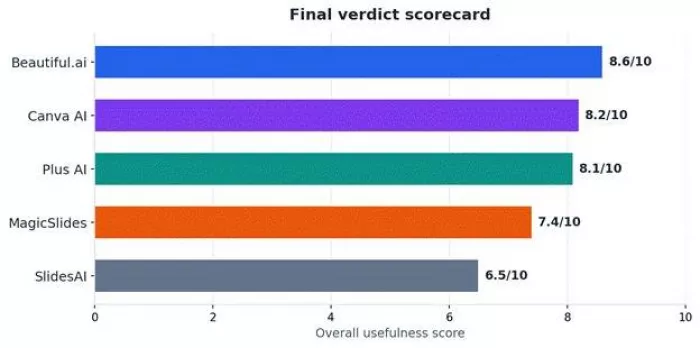
The final verdict scorecard. Overall usefulness reflects the balance of all nine test factors.
Best overall: Beautiful.ai for business decks. Best for design freedom: Canva AI. Best for PowerPoint and Slides users: Plus AI. Best for quick drafts from any source: MagicSlides. Best for converting long text to slides: SlidesAI.
If I had to name one free starting point, SlidesAI's free tier is the most genuinely usable for light, occasional needs, though it is the most basic of the group. For anything you would show a client or an investor, a paid plan from one of the top three is worth the money.
The honest takeaway: none of these tools replaces human judgment. Each one removes the blank-slide problem and gets you to a draft fast, but the words, the facts, and the final polish are still on you. Used that way, the best AI presentation tools genuinely save time. Used as a one-click deck button, they will let you down.


Comments