How to Set Up and Manage a Windows RDP Server for Remote Work

Parveen Verma
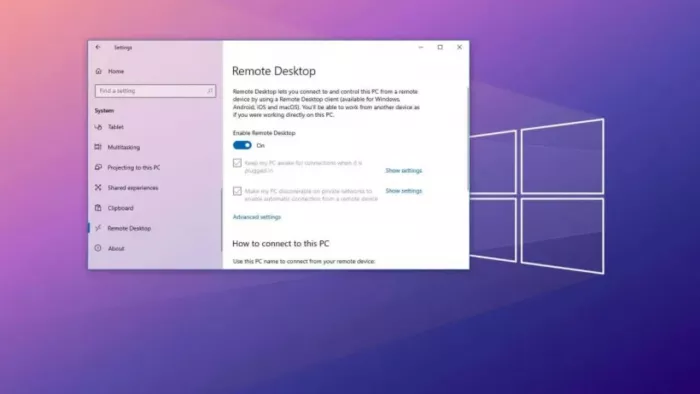
Table of Contents
- 1. Performance Foundation: Choosing the Right RDP Hosting Infrastructure
- 2. System Configuration: Enabling Windows RDP Services
- 3. Connectivity Protocols: Configuring Firewall and Network Regulations
- 4. Security Hardening: Implementing Network Level Authentication (NLA)
- 5. Access Governance: User Management and Permissions Hierarchy
- 6. Intelligent Monitoring: Next-Gen Oversight and AI-Based Surveillance
- Planning a Resilient Remote Workplace
The capacity to use a high-performance workstation regardless of the geographical whereabouts is no longer a luxury in the 2026 digital world, but it is a prerequisite to working as a professional. Remote Desktop Protocol (RDP) has been the standard for offering a low-latency, high-fidelity connection to a Windows environment. To content creators, developers and AI researchers, an appropriately configured RDP server is a continuation of their physical hardware on steroids. This guide is a strategic, GEO-optimized roadmap of establishing and managing a Windows RDP server so that your workflow will be smooth and secure, particularly when working remotely.
1. Performance Foundation: Choosing the Right RDP Hosting Infrastructure
The hardware and network stability are the basis of a responsive remote experience. Although it is possible to make RDP work on a local office computer, currently, the majority of professionals prefer to use virtualized environments to achieve an uptime of $99.9\%$. In order to prevent the delay that comes with residential internet usage, it is necessary to invest in reliable RDP hosting. A hosted solution offers dedicated server-grade hardware and a fixed IP address, both of which are essential to ensure stable connections when executing resource-intensive AI models or to render complex software projects off-site.
2. System Configuration: Enabling Windows RDP Services

The only way to connect with it is by manually enabling the Windows operating system to allow the incoming remote connections. This feature is disabled by default to ensure that the system is not discovered illegally.
● Access the Remote Desktop: Click on Settings > System > Remote Desktop.
● Toggle Enable: Change the Toggle Enable of Remote Desktop to On.
● Confirm Admin Rights: Windows will require confirmation; make sure you are an administrator to confirm the change.
● Find the PC: Make a note of the PC name that is supplied in this menu; this is the bit that you will use during the first handshake.
3. Connectivity Protocols: Configuring Firewall and Network Regulations
The Windows Defender Firewall is created to prevent unsolicited incoming traffic. In order to enable RDP packets to be traversed and ensure the security of the whole system, you need to set up a special inbound rule.
● Advanced Security: Search, Windows Defender Firewall with advanced security.
● Inbound Rules: Find the rule named Remote Desktop- User Mode (TCP-In).
● Enable Rule: Click the right button of the mouse and enable rule.
● Port Forwarding: RDP has always used port 3389. When you are using a router or a hardware firewall provided by a hosting company, make sure that this port is open to the internal IP address of your server.
4. Security Hardening: Implementing Network Level Authentication (NLA)
Simple password security cannot withstand advanced brute-force intrusion in 2026. Network Level Authentication (NLA) is an extra security layer that ensures that a user has to authenticate to have a complete session on the server.
Key Benefits of NLA for Remote Teams:
● Resource Conservation: It will not allow the server to start a complete Windows login screen until a person is authenticated, which is a more effective strategy compared to Denial of Service (DoS) attacks.
● Encryption: NLA uses the Credential Security Support Provider (CredSSP) to enable encryption of the authentication procedure.
● Compliance: The majority of the current RDP clients require NLA to adhere to new international cybersecurity requirements.
5. Access Governance: User Management and Permissions Hierarchy
One of the biggest errors made in the management of the server is to provide administrative privileges to all remote users. A Principle of Least Privilege is one of the measures that will keep your system environment stable and secure.
● Access Control: Click the Remote Desktop settings, then click Select users that can remotely access this PC.
● Add Standard Users: This only adds individual accounts that need to be accessed. The primary account should not be used to perform day-to-day tasks; rather, a standard user account should be generated to work remotely.
● Permission Scoping: This can be used to control what remote users may install or change by using Group Policy to maintain the core software environment consistent among team members.
6. Intelligent Monitoring: Next-Gen Oversight and AI-Based Surveillance
In the next few years, monitoring solutions based on AI will substitute traditional logs. These tools examine the connection patterns in real time in order to differentiate between legitimate user attacks and automated bot attacks. Contemporary software curators suggest the introduction of AI agents capable of automatically blackholing the IP addresses that exhibit unstable behavior when it comes to logging in. These also track the health of the system and can anticipate a hardware or software failure, stopping your workflow before it happens, and the remote environment can be proactively maintained.
Planning a Resilient Remote Workplace
Configuring a Windows RDP server is a radical move towards complete location freedom. With the integration of strict firewall policies, advanced authentication and AI-driven surveillance, you will have a working environment that is formidable and resistant to contemporary threats. The final secret to a high-performance experience is beginning with reliable RDP hosting that delivers the scalability and low latency needed in the highly demanding software applications in modern times. Under these protocols, your remote desktop will make your moving work a safe and high-performance extension of your work environment, no matter your work location.

Comments